Database Manager
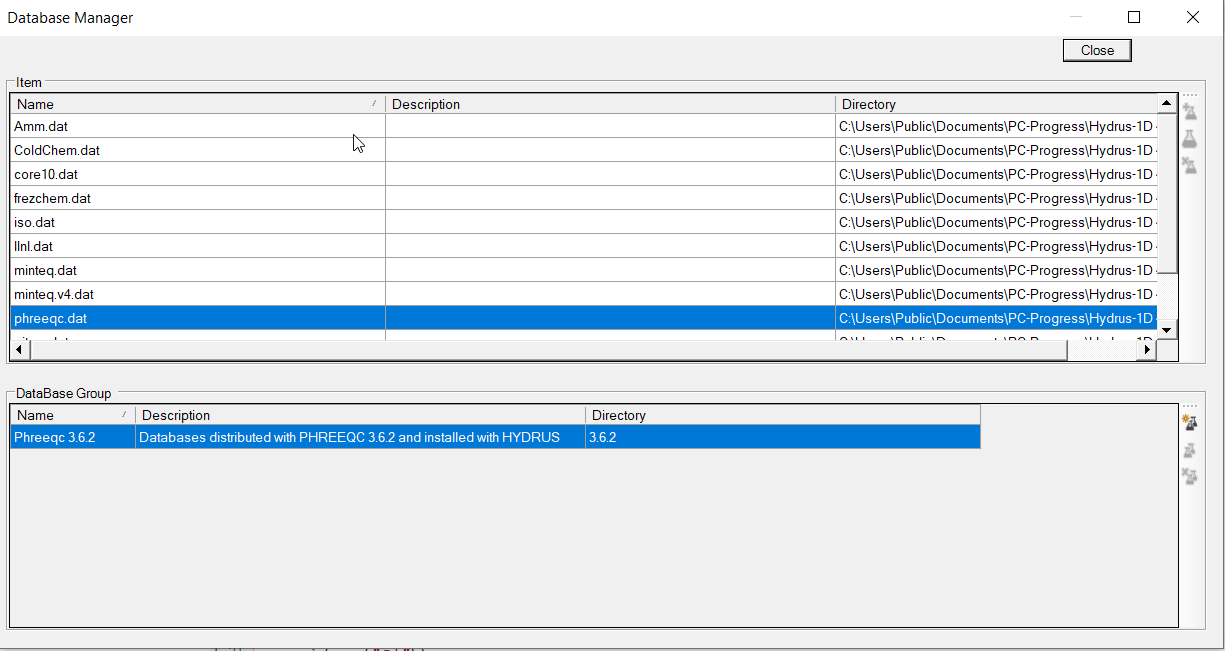
The Database Manager allows for organizing databases in database groups.
A database group can group:
- a number of databases that comes from the same origin. In the screenshot below, the database group Phreeqc 3.6.2 groups all databases that are part from the Phreeqc 3.6.2 installation file. Note that this particular database group (or newer versions) are always part of the of HYDRUS 5.x installation.
- Different versions of a particular database. This allows for reproducibility and traceability. In some cases, it can contain the same databases but with a different activity correction model.
When selecting a database group (bottom part), the databases in that group are shown in the upper part.
The toolstrip associated with the bottom part (Database group) has following commands:
|
|
Create a new database group. An empty Metadata form for database groups opens. The user adds basic information (name, description, folder) of the new project in the Definition group. Additional information can be added as well - see Metadata form for general information. |
|
|
View and Edit an existing project. The Metadata form of the project opens The user can change information - see Metadata form for general information. . |
|
|
Remove project from list. The project is removed from the list; however, simulation cases and files are not deleted from local or network hard drives. |


The toolstrip associated with the upper part databases) has following commands:
|
|
Open and add an existing database. First, the file browser opens with the folder associated with the database group as the default folder. The user select the database file.The user is not restricted to that particular folder and can browse to another folder. Next, the Metadata form opens and the user can add informatio- see Metadata form for general information. . |
|
|
View and Edit an existing simulation case The Metadata form of the simulation case opens. The user can change information - see Metadata form. |
|
|
Remove the simulation cased from the project. The simulation case is removed from the project; however, the files and folder are not deleted from local or network hard drives. |


The database manager can be accessed via:
Adding, editing and deleting database groups and databases
- Setting default database - Via Settings and Preferences - Database
Adding, editing and deleting database groups and databases
Select general default database
- Setting project default database - Via Metadata form for projects
Adding, editing and deleting database groups and databases
Select project default database
- Setting case database - Via Database Panel in Input Work Space
Adding, editing and deleting database groups and databases
Select case database