Panel - Database
The Database Panel is available in
- HPGeochemistry
- HYDRUS when PHREEQC is used as the geochemical solver as selected in Selection geochemical solver
The Database Panel in the input work space allows for:
- Text box indicating the selected database - If no database is selected, the text box is empty. For a new simulation case, the default database might be selected automatically depending on the settings for the project (see Project - New/Editing).
- Selection of the database - The button Select opens the Database Manager to select the data base for the simulation case.
- Selection of components (only available in HPGeochemistry) - The button Components opens the list of aqueous components in the database. Selection of the components will activate colouring of components, species and phases in the other input panels and extra information in the Help Trees. The choice of the components is optional and will not influence the geochemical calculation.
- Adding new components and databases to the project - The button Add Information opens a dialogue window to add new components, phases and species to the database (see Add Database Information).
- Checking the box Show Database - By default, the database is not visible in the Database Panel. When Show Database is checked, the database is visible in the panel (see figure below).
The Database panel in HPGeochemstry looks like
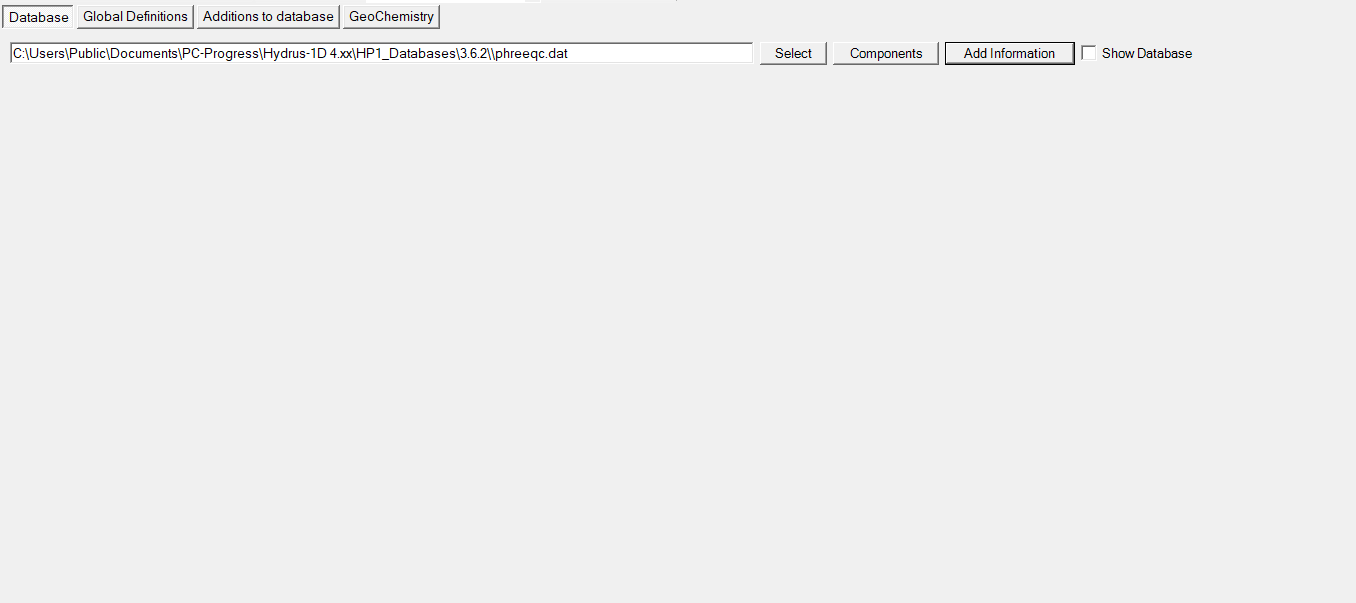
Via the Database Panel, the database file can be viewed.
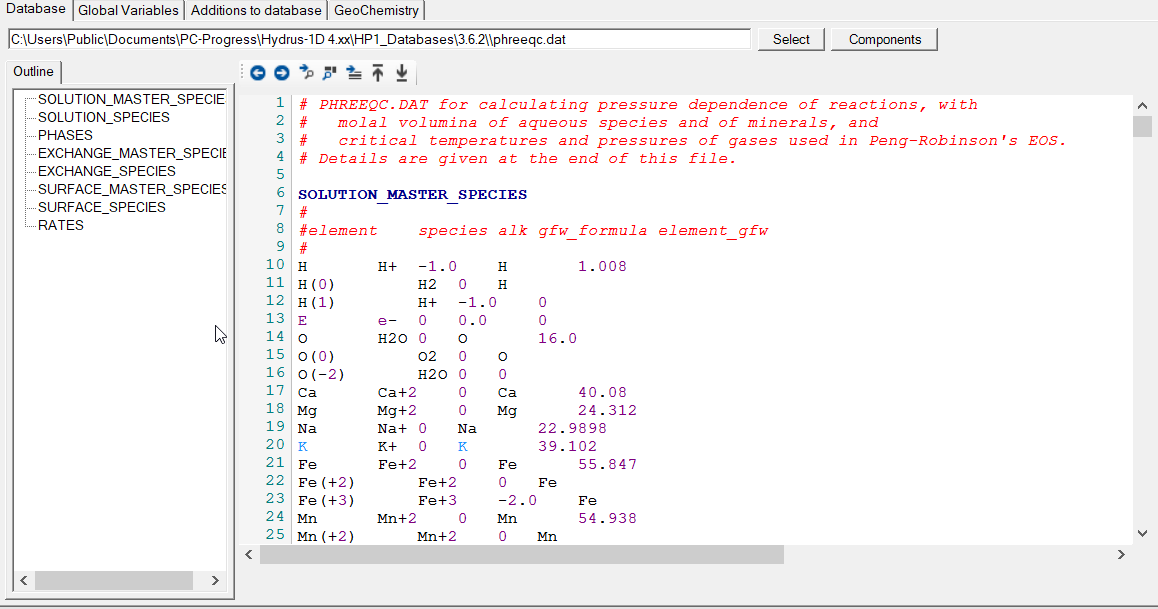
The Database Panel shows only the outline of the database (Help Trees). In the input area, only the navigation and search toolstrips are active.
Subtopics
- Add Database Information