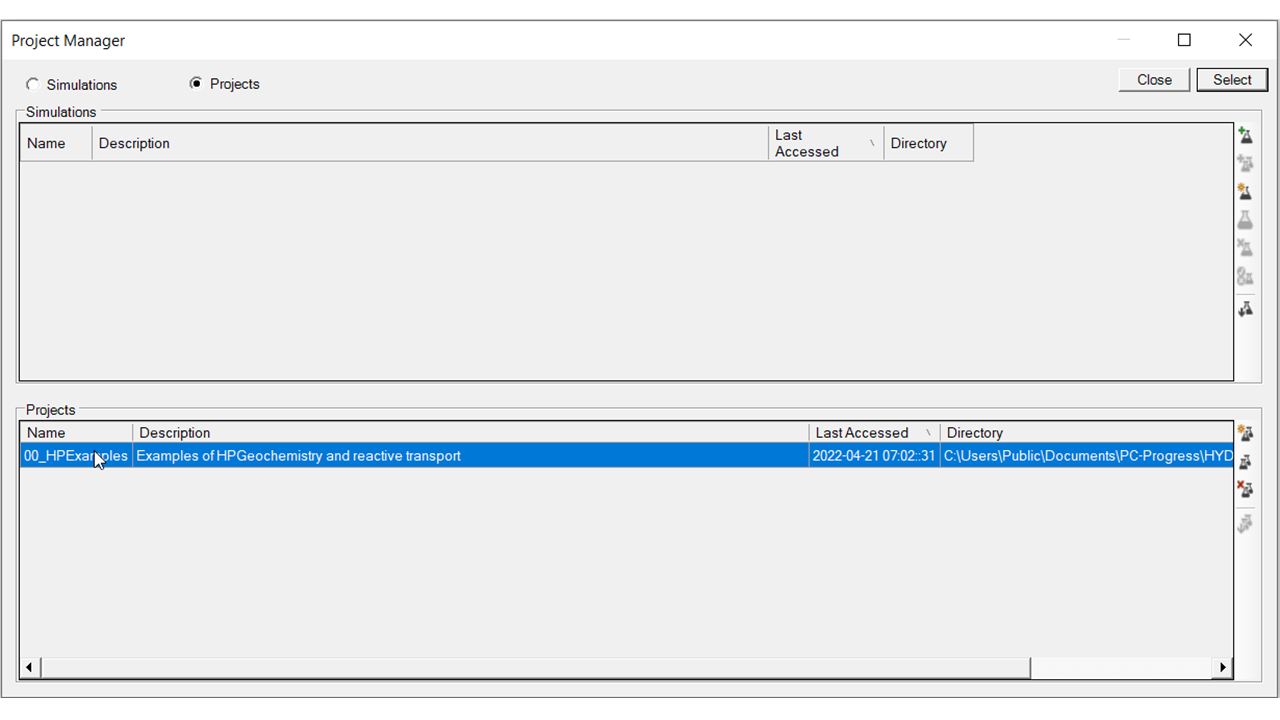
Define a new managed project
This example illustrates how to define a new Managed Project in the Project Manager of HPGeochemistry.
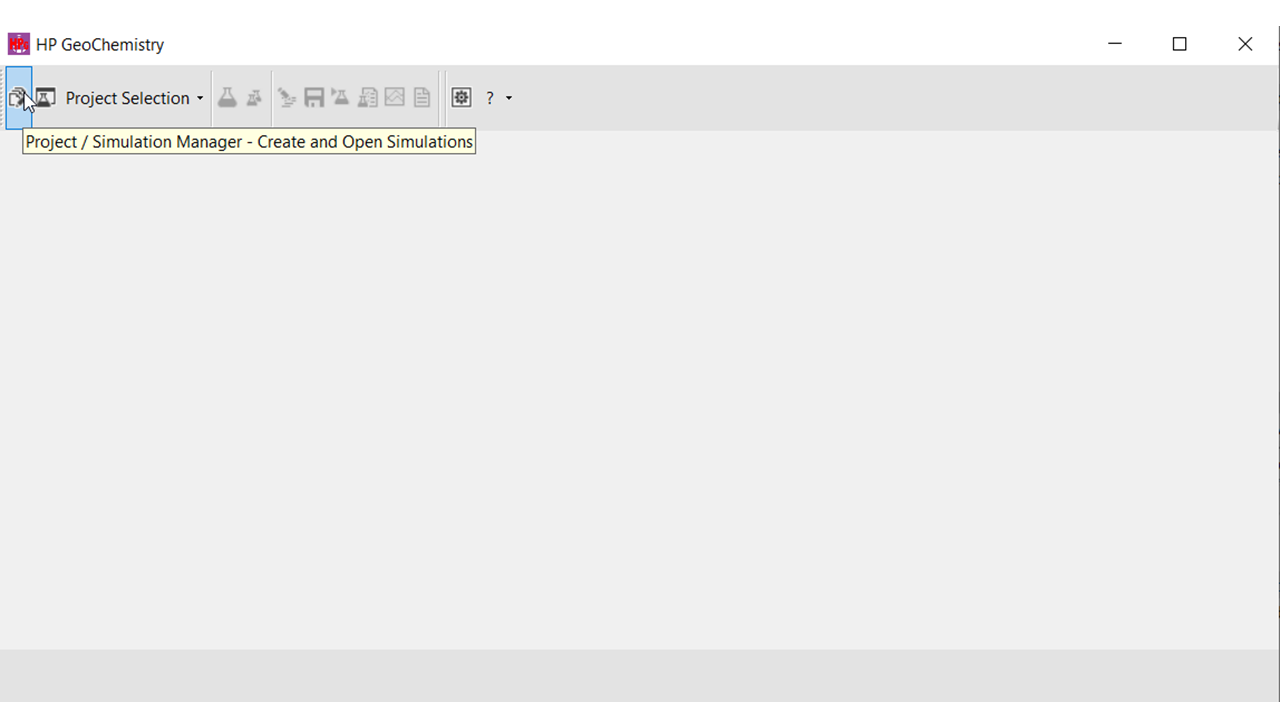
Open Project / Simulation Manager
In the main frame of HPGeochemistry, select the icon of the Project / Simulation Manager.
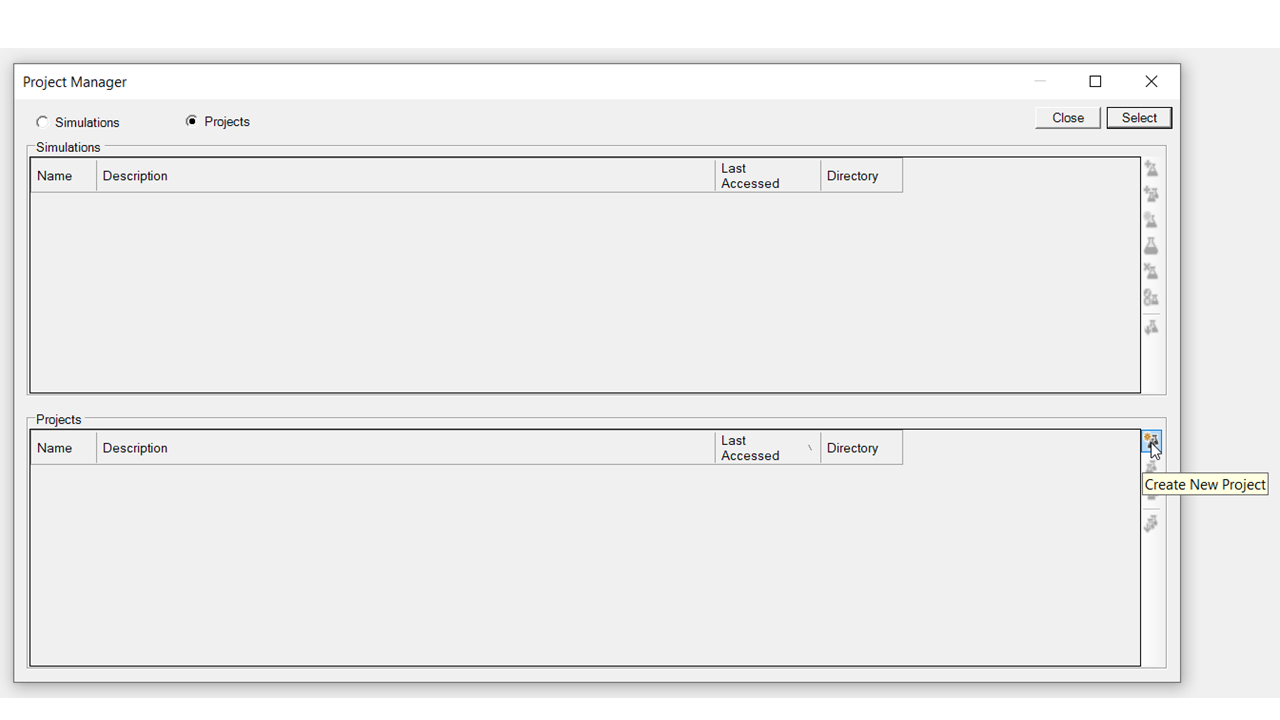
Create new project
Select the icon for creating a new project in the Project Manager.
Define the Project Metadata
In the Metadata from of a project, fill in the name of the project (required) and a description (optional). Default settings can be changed including the folder options for a Managed Project.
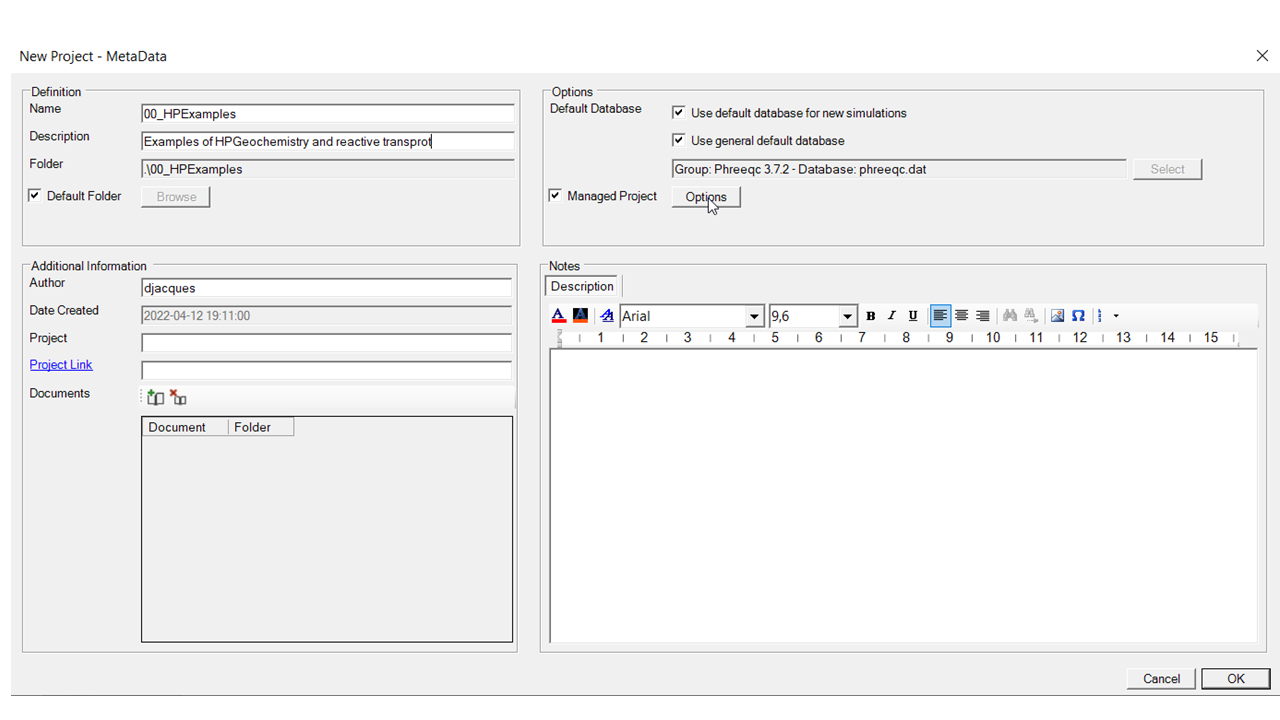
Click OK, and the project is defined.