Project Manager
The Project Manager allows for managing different projects and within projects for managing different simulation cases. Using the radio button, either a list of recent cases is given, or a list of projects and corresponding cases.
Project and case view
When the radio button Project is selected, the project manager has two subsections. The lower part allows for actions related to projects, whereas the upper part is for actions related to specific simulation cases within a project.
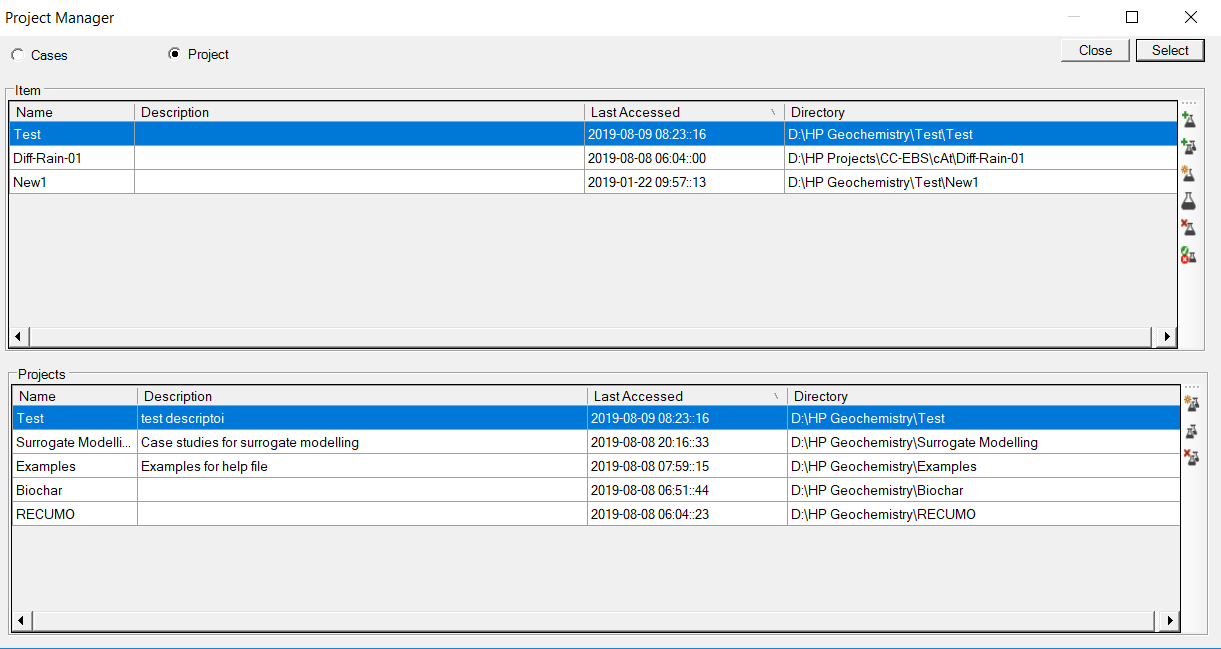
The bottom part shows the different defined projects, with the most recent accessed project at the top. After selection of a project, the simulation cases in the project are listed at the upper part, again with the most recent accessed project at the top.
The toolstrip associated with the bottom part (project) has following commands:
|
|
Create a new project. An empty Metadata form opens. The user adds basic information (name, description, folder) of the new project in the Definition group. Additional information can be added as well - see Metadata form. See also Project - New/Editing |
|
|
View and Edit an existing project. The Metadata form of the project opens The user can change information - see Metadata form. See also Project - New/Editing |
|
|
Remove project from list. The project is removed from the list; however, simulation cases and files are not deleted from local or network hard drives. |


The toolstrip associated with the upper part (simulation case) has following commands:
|
|
Open an existing (not listed) simulation case. First, the folder browser opens with the project folder as the default folder. The user select the folder corresponding to the simulation case. If information of the simulation case is missing, the user is asked if a new case need to be created. If information is available, the Metadata form opens. The user can change information - see Metadata form. |
|
|
Copy an existing simulation case. The user can change information - see Metadata form. |
|
|
Create a new simulation case. The user adds basic information (name, description, folder) of the new simulation case in the Definition group. Additional information can be added as well - see Metadata form |
|
|
View and Edit an existing simulation case The Metadata form of the simulation case opens. The user can change information - see Metadata form. |
|
|
Remove the simulation cased from the project. The simulation case is removed from the project; however, the files and folder are not deleted from local or network hard drives. |
|
|
Deleting the simulation cased from the project. The simulation case is removed from the project and the files and folder are deleted from local or network hard drives. |


Recent cases view
When the radio button Cases is selected, the project manager shows a flat list with all cases, the most recent accessed cases at the top.
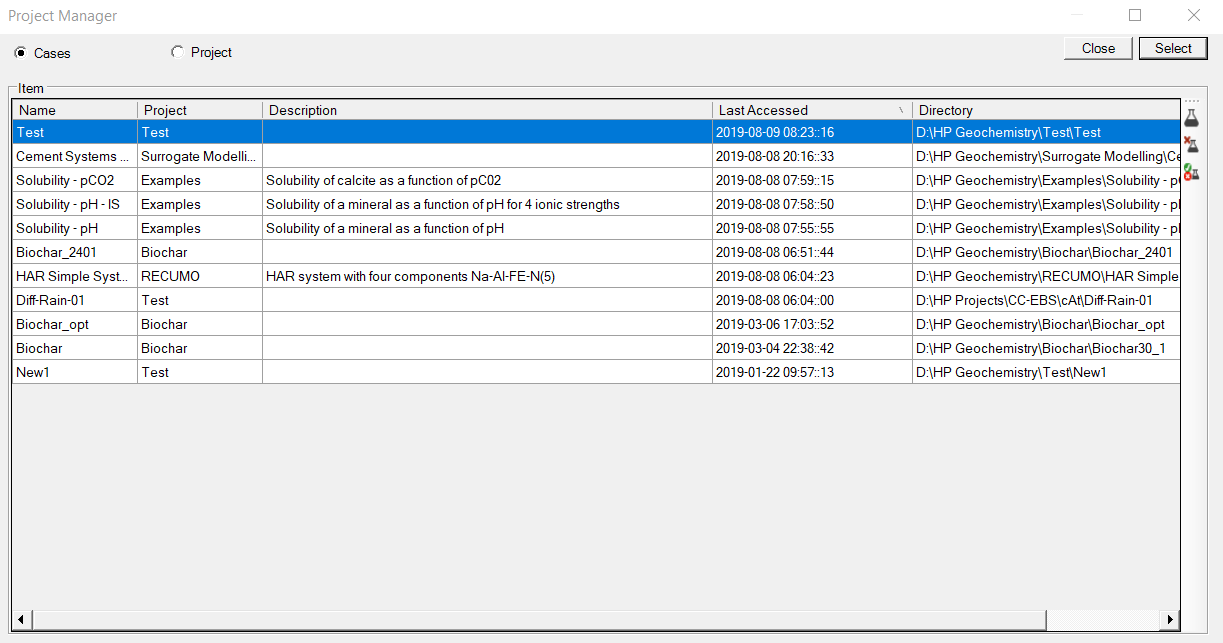
The actions related to the Case view are limited to editing, removing and deleting (see above).