Cell Types
HPGUI supports three editable cell types:
- Value: default type with a numerical or an alphanumerical value
- Checkbox: type with true or false
- DropDown: a numerical or an alphanumerical value where value is selected via a drop down box
The cell type is selected in the Type groupbox
Value Type
CheckboxType
In Phreeqc Input value:
-> Saved as a numerical value:
True : 1
False : 0
DropDownbox
The items of the drop down box are defined with the form as shown below.
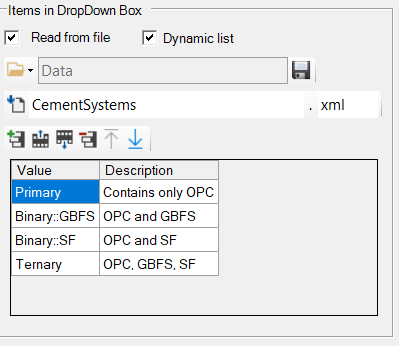
The standard method for defining the items is by adding records in the table:
- the numerical or alphanumerical values are defined in the Value column
- A description or explanation can be added in the Description column
The selected record serves as the default value.
Alternatively, items can be imported from a file in the correct xml format (see Format of file for dropdown items).
To define the file name:
- Define the file via the form
- Select the folder containing the via

- Put the file name in the first text box and the file extension in the second text box (by default: xml)
- Import the data via

- Open the Open File Dialogue Window via . To open the dialogue window, at least the text box for the file name should be empty.
The file with the items can be made in several ways (and thus be re-used in other simulations):
- Manually - see Format of file for dropdown items for information of format of the file
- Based on the items in the table, an external file will be saved via
 .
. - Filename is based on the information of the folder (via ) and the file name and file extension textboxes;
- If no valid filename can be made, a Save File Dialogue Window is launched.
- Via data blocks, see Datablock input
Finally, there are different options for loading the items:
- Standard, it is defined internally in the Global Variable table (listed as items in the table without loading from an external file.
- When Read from file is checked, the items will be loaded from the defined external file when reading the simulation
- When Dynamic list is checked (and also Read from file), the items will be loaded every time the user activate the Global Variables item.